
Using custom extensions for Affinity 2.0
Custom extensions let you build and register your own UI components when using Affinity 2.0.
This guide explains how to register and add custom extensions to Affinity landing pages.
Before you start
- You must build your custom extension before registering it. You can either upload the file directly in the Page Builder or host it externally.
- This guide applies only to Affinity 2.0. See Customizing the Affinity customer portal if you use Affinity 1.0.
- You must contact the Recharge Support team to request access to this feature.
- You can use custom extensions on Affinity landing pages, including the Home page, Subscriptions list page, Cancellation Prevention, Win Backs, and Upcoming Order Email pages.
Overview
Custom extensions are Web Components that you:
- Register in the Affinity Page Builder
- Add as sections to Affinity landing pages, including the Home page, Subscriptions list page, Cancellation Prevention, Win Backs, and Upcoming Order Email pages
- Render in the customer portal
Step 1 - Build a custom extension
Build your custom extension as a Web Component. You can use any framework or library (React, Vue, Svelte, or vanilla JavaScript), as long as the final output is a Web Component.
Requirements
-
HTTPS only: The customer portal runs in a secure context. The browser blocks non-HTTPS resources.
-
Default export: Export the Web Component class as the default export. Do not use named exports.
-
Load time: Ensure the extension loads within 5 seconds. The portal removes extensions that exceed this limit.
-
Valid tag name: Use a tag name that matches the custom element defined in your component.
Example
class MyWidget extends HTMLElement {
  connectedCallback() {
    this.innerHTML = `<p>Hello from my custom extension!</p>`;
  }
}

export default MyWidget;
See the affinity-extensions repo for reference examples.
Step 2 - Open the page builder
Updating the customer portal
Access the page builder from your customer portal settings:
- In the merchant portal, click Storefront, then select Customer portal.
- Under Themes, click your theme’s Home page to expand the options.
- From the expanded list, choose Affinity 2.0 under the Affinity customer portal theme.
- Click Customize.
Updating a landing page
Open the flow builder for Cancellation Prevention, Win Backs, and Upcoming Order Email pages to access the landing page editor. See Building landing pages using the Site Builder for more information.
Open the Custom extensions tab
Custom extensions are managed from the Custom extensions tab in the page builder:
- Open the landing page where you want the extension to appear.
- Select Header, Main column, or Right column, then click Add a section.
- Select the Custom extensions tab.
From this tab, you can select an extension you've already created or create a new one.
Step 3 - Register a custom extension
You can register a custom extension in one of the following ways:
- Upload the compiled JavaScript file directly (recommended)
- Provide a hosted file URL (alternative)
Upload a custom extension file (recommended)
You can upload your compiled extension file directly in the Page Builder instead of hosting it externally.
When you upload a file:
- Recharge stores the file in Shopify Admin → Content → Files
- The file is available across all Shopify themes in your store
- You do not need to host the file on a CDN or external service
To upload a file:
- From the Custom extensions tab, click Create a custom extension.
- Upload your compiled JavaScript file.
- Complete the remaining fields, then click Save.
Use a hosted file URL (alternative)
If you host your extension externally (for example, using a CDN or cloud storage), you can register it using a file URL:
- From the Custom extensions tab, click Create a custom extension.
- In the File URL field, provide an HTTPS URL to your compiled JavaScript file.
- Complete the remaining fields, then click Save.
Custom extension fields
Use the table below to complete the custom extension fields.
| Field | Required | Description |
|---|---|---|
| Upload file | Yes (if not using a File URL) | Upload your compiled JavaScript file directly. Recharge stores the file in Shopify Admin → Content → Files, making it available across all Shopify themes. |
| File URL | Yes (if not uploading a file) | Provide an HTTPS URL to the compiled JavaScript file (for example, a CDN or Cloudflare R2 URL). Use this option if you host your extension externally instead of uploading it directly. |
| Tag name | Yes | Define the Web Component tag (for example, my-widget). The tag must:
|
| Extension name | Yes | Enter an internal name for the portal (customers do not see this value) |
| Extension description | No | Enter an internal description (customers do not see this value) |
| Integrity Hash | No | Provide a cryptographic hash to verify file integrity. The browser rejects the file if the hash does not match |
| Events | No | List events that trigger the component’s refresh() method |
Event behavior
When a configured event fires:
- The portal calls the component’s
refresh()method - The portal does not pass any data to
refresh() - The component fetches its own data
Step 4 - Add the extension to your page
After you register the extension, you can add it to any supported Affinity landing page:
- From the Custom extensions tab, select your extension to add it to the landing page.
- Click and drag the custom extension section to reposition it on the page.
Step 5 - Test and publish
New extensions start in test mode:
- The portal shows them only in preview
- Customers cannot see them
Once you've verified the extension works as expected, make the extension visible:
- Click on the custom extension section.
- Enable Make this extension visible to customers.
- Click Done to publish your changes.
Examples
The affinity-extensions repo includes reference implementations you can use as starting points. The examples below show two of these extensions in the customer portal.
Cancel subscription
Gives eligible customers a cancellation entry point in the customer portal. Customers with one active subscription go directly to Recharge's churn experience. Customers with multiple subscriptions can select an individual subscription, or optionally cancel all subscriptions in a single flow.
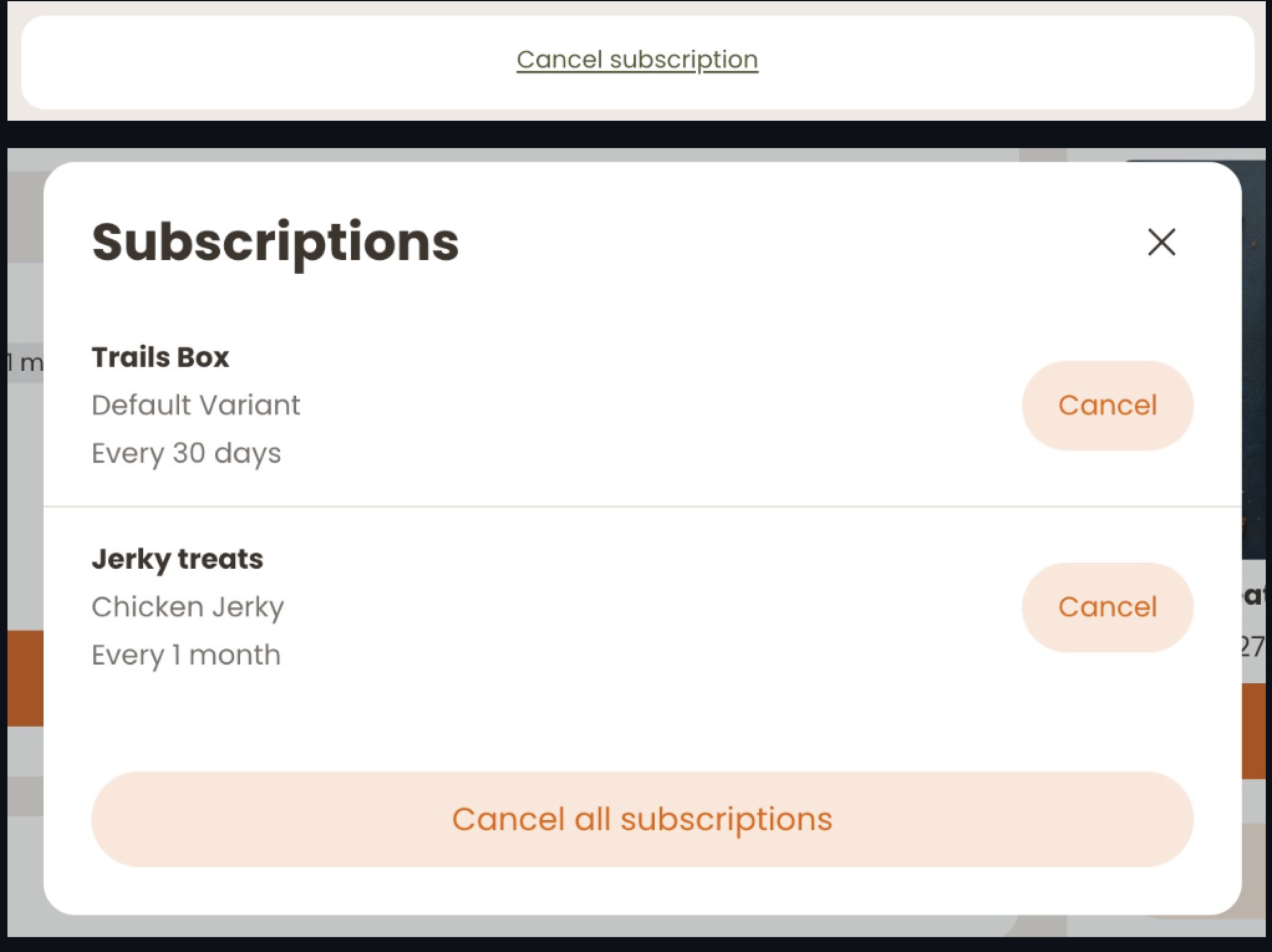
View rc-cancel-subscription on GitHub for more information.
Product offer
Presents a single product as an add-on to the customer's next order, with optional variant and delivery frequency selectors. Supports both one-time and subscription plans side by side. Hides automatically when any variant of the product is already in the upcoming charge.
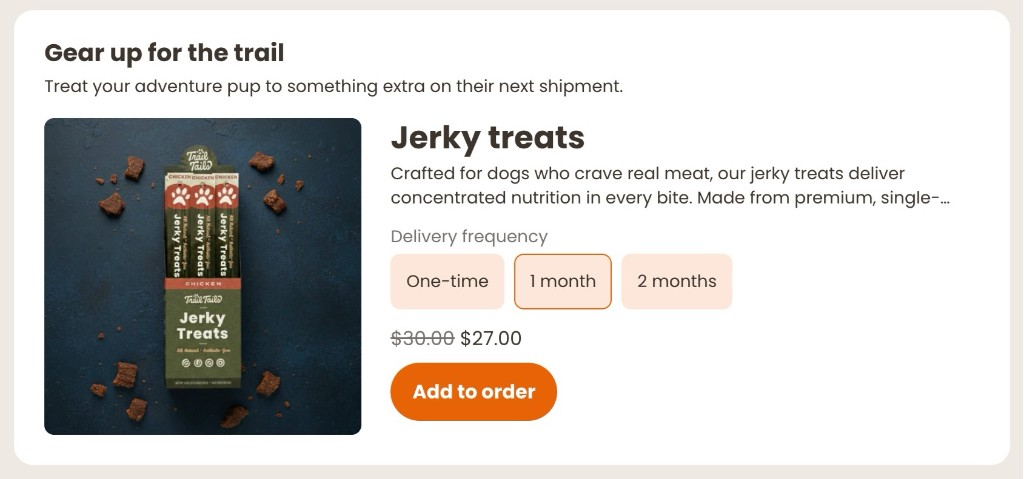
View rc-product-offer on GitHub for more information.
Updated 2 months ago